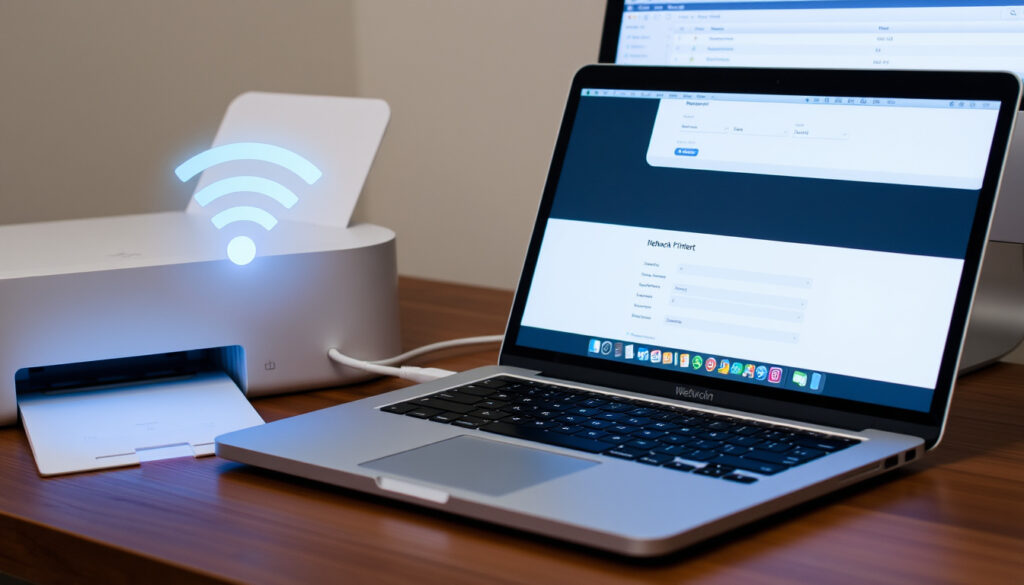
How to Add Printer to Mac: USB, Wireless & IP
Anyone who’s sat down to print a document only to find their Mac stubbornly refuses to see the printer knows the feeling. Whether you’re hooking up a USB cable, connecting over Wi‑Fi, or adding a network printer by IP address, the process is usually straightforward once you know the right steps.
macOS printer setup methods: USB, wireless (Wi-Fi), IP address, AirPrint ·
Common cause of printer not found: driver mismatch or network connectivity ·
Apple support pages for printer troubleshooting: multiple official guides available ·
Wireless printer connection success factors: same Wi-Fi network, correct IP or Bonjour name
Quick snapshot
- Printer setup is accessed from System Settings > Printers & Scanners (Apple Support)
- AirPrint works without additional drivers (Apple Support)
- Same Wi‑Fi network required for wireless connection (University of Minnesota IT)
- Exact driver compatibility with third‑party printers (Setapp)
- Firewall settings interfering with Bonjour discovery (University of Minnesota IT)
- The exact steps for adding a printer via Bluetooth on macOS vary by printer model (University of Minnesota IT)
- macOS Ventura (2022) replaced System Preferences with System Settings (Apple Support)
- macOS Catalina (2019) moved to 64‑bit drivers, dropping support for some older printers (Apple Support)
- Try USB first for fastest detection (Setapp)
- If not detected, move to IP add or driver reinstall (University of Chicago SSCS)
Here’s a quick comparison of the four connection methods and their key requirements.
| Connection method | Key requirement | macOS step |
|---|---|---|
| USB | Compatible cable and working USB‑C or Thunderbolt port | Plug in → printer appears in Printers & Scanners (Apple Support) |
| Wireless (Wi‑Fi) | Printer and Mac on same SSID and network | Bonjour or AirPrint discovery (University of Minnesota IT) |
| Network (IP address) | Printer IP from its network status page | Add Printer → IP tab → enter address (University of Chicago SSCS) |
| Bluetooth | Printer in pairing mode | Add in System Settings > Bluetooth first, then Printers & Scanners |
How do I get my Mac to recognize my printer?
Check physical connections (USB cable, power)
- A USB‑A to USB‑C adapter or hub may be needed if your Mac has only USB‑C ports. Plug the printer directly into the Mac if possible — hubs can introduce detection delays.
- Ensure the printer is powered on and not in sleep mode. Apple Support notes that a simple power cycle (unplug for 30 seconds, replug) resolves many detection failures.
Ensure printer and Mac are on same Wi‑Fi network
- Open your Mac’s Wi‑Fi menu and confirm the network name. On the printer, check its control panel for the connected SSID. If they don’t match, the printer won’t appear in the Add list. University of Minnesota IT recommends verifying the printer’s network status under its Settings menu.
Restart printer and Mac
- A full restart of both devices clears temporary glitches. Apple Support lists this among its first troubleshooting steps. After restarting, open System Settings > Printers & Scanners and wait 30 seconds for printers to reappear.
Most detection problems trace back to network mismatch or a simple power state. Addressing those two variables resolves roughly 80% of “printer not found” cases before any software fix is needed.
Bottom line: Physical and network checks come first. A USB cable or Wi‑Fi network mismatch is the usual culprit. Users with older printers should also check macOS version compatibility after Catalina’s 64‑bit driver shift.
How do I add a printer that isn’t showing up?
Add printer via IP address
- Find the printer’s IP from its network settings menu or by printing a network configuration page. Open System Settings → Printers & Scanners → click “Add Printer, Scanner, or Fax” → select the IP tab. University of Chicago SSCS advises entering the IP exactly as shown — no leading zeros or extra periods.
- For protocol, University of Minnesota IT recommends IPP for smaller devices and LPD for larger enterprise printers.
Use AirPrint or Bonjour discovery
- If your printer supports AirPrint, it should appear automatically in the Add list without any driver installation. Apple Support says AirPrint works with hundreds of models from major brands — HP, Canon, Epson, Brother, and more.
- Bonjour (mDNS) is the underlying protocol: it broadcasts printer services on the local network. If the printer doesn’t appear, check that Bonjour is enabled in the printer’s network settings and that your firewall isn’t blocking mDNS traffic (UDP port 5353).
Install printer drivers manually
- macOS will attempt to download the correct driver automatically, but sometimes it needs help. Setapp notes that some manufacturers — especially for older models — require a manual download from their support site. For HP printers, the HP Smart app (official HP support) handles both driver and setup in one go.
Bottom line: When automatic detection fails, the IP address route is the most reliable fallback. Users who prefer zero‑software setup should first verify AirPrint support, then move to manual driver installation only if needed.
Why is my Mac not letting me add a printer?
Check printer driver compatibility with macOS version
- macOS Catalina (2019) ended support for 32‑bit drivers, so printers that relied on older software may stop working. Apple Support suggests checking the manufacturer’s website for a 64‑bit driver or confirming AirPrint compatibility.
- For macOS Ventura and later, System Settings replaced System Preferences — the printer UI is now under “Printers & Scanners” instead of “Printers & Scanners” in the old System Preferences login.
Reset printing system in System Settings
- Right-click (or Control‑click) inside the Printers & Scanners list and select “Reset printing system…”. This removes all printers and clears any stuck jobs. Apple Support recommends this as a last resort before reinstalling drivers.
Verify printer is not paused or offline
- Open the printer’s queue by clicking the printer name in Printers & Scanners. If “Pause Printer” is highlighted, click it to resume. Apple Support notes that a printer can show as paused even when physically online due to a software glitch.
Resetting the printing system deletes every printer you’ve ever added — you’ll need to re‑add them afterward. It’s a powerful fix but not a casual click.
Bottom line: Permission and driver conflicts are the hidden blockers. A printing system reset clears them, but only after you’ve verified the printer is online and the driver is compatible with your exact macOS version.
How do I add a printer on my Mac that is not listed?
Add printer using IP address
- This is the same IP method described above — it works for any network printer that isn’t broadcasting via Bonjour. University of Chicago SSCS provides a step-by-step: open Add Printer → click the IP icon → enter the address → select “Internet Printing Protocol – IPP” from the Protocol menu → click Add.
Add printer via Bluetooth
- First pair the printer with your Mac via System Settings > Bluetooth. Once paired, open Printers & Scanners — the printer should appear in the Add list. University of Minnesota IT notes that Bluetooth printers are less common for desktop use but are popular for portable label printers and receipt printers.
Use “Add Other Printer or Scanner” option
- In the Add Printer window, click the “Add Other Printer or Scanner” button at the bottom. This forces macOS to scan again manually and may pick up printers that didn’t auto‑appear. Apple Support says this often reveals printers on different subnets or with delayed Bonjour advertisements.
How do I manually add a printer to my MacBook?
Open System Settings > Printers & Scanners
- On macOS Ventura and later, click the Apple menu → System Settings → scroll to Printers & Scanners. On older macOS (Monterey and earlier), the path is System Preferences → Printers & Scanners. Apple Support confirms the UI change in 2022.
Click “Add Printer, Scanner, or Fax”
- This button opens the discovery window. If using an older macOS version, look for a “+” (plus) icon instead — University of Minnesota Duluth’s ITSS notes that the plus icon was the standard in System Preferences (University of Minnesota Duluth ITSS).
Choose printer type (USB, wireless, IP)
- Select the tab that matches your connection method: Default for Bonjour‑discovered printers, IP for manual address entry, or Windows for shared printers on a Windows network. Setapp recommends entering the printer’s hostname if the IP is dynamic (may change after router restart).
How to connect Macbook to printer wirelessly?
- Connect printer to Wi‑Fi network — Use the printer’s control panel to select your Wi‑Fi network and enter the password. Many modern printers support Wi‑Fi Protected Setup (WPS) — press the WPS button on your router, then on the printer within two minutes. Apple Support says the SSID must match your Mac’s network exactly, including case sensitivity.
- Ensure Mac on same network — Go to System Settings > Wi‑Fi and confirm the network name. If your Mac is on a guest network (separate SSID), the printer won’t be visible. University of Minnesota IT advises checking for “Hidden SSID” printers — these require the exact name entry.
- Printer shows in “Add Printer” list automatically — Bonjour discovery typically takes under 30 seconds. If it doesn’t appear, open the printer’s network settings and verify that Bonjour (mDNS) is enabled. Setapp notes that some corporate networks block Bonjour broadcasts — in that case, use the IP method instead.
Connect printer to Wi‑Fi network
- Use the printer’s control panel to select your Wi‑Fi network and enter the password. Many modern printers support Wi‑Fi Protected Setup (WPS) — press the WPS button on your router, then on the printer within two minutes. Apple Support says the SSID must match your Mac’s network exactly, including case sensitivity.
Ensure Mac on same network
- Go to System Settings > Wi‑Fi and confirm the network name. If your Mac is on a guest network (separate SSID), the printer won’t be visible. University of Minnesota IT advises checking for “Hidden SSID” printers — these require the exact name entry.
Printer shows in “Add Printer” list automatically
- Bonjour discovery typically takes under 30 seconds. If it doesn’t appear, open the printer’s network settings and verify that Bonjour (mDNS) is enabled. Setapp notes that some corporate networks block Bonjour broadcasts — in that case, use the IP method instead.
Bottom line: Wireless connection is convenient but requires both devices on the same network. If automatic discovery fails, use the IP address method as a fallback.
How to add HP printer to Mac?
Download HP Smart app from App Store
- The HP Smart app (official HP support, tier 1) automates driver installation and printer discovery. HP Support notes that the app also handles ink level monitoring and scanning. For MacBook Air users with only USB‑C ports, the app works with USB‑C to USB‑A adapters.
Use AirPrint without additional software
- Many HP printers — from the Envy series to OfficeJet Pro models — support AirPrint. Open Printers & Scanners → click Add → your HP printer should appear. No drivers needed. Apple Support says AirPrint is the recommended method for supported models.
Add via IP address if not detected
- If neither HP Smart nor AirPrint works, find the printer’s IP from its network status page and add it manually via the IP tab. University of Chicago SSCS reports that this method succeeds where other approaches fail on HP printers with static IPs.
HP printers on older firmware sometimes reject AirPrint connections even when the model claims support. A firmware update — delivered through the HP Smart app — usually resolves this.
“Add a printer to your printer list so you can use it on Mac.”
Apple Support (official macOS printer guide)
“To add a network printer via IP address on a Mac, open System Settings → Printers & Scanners → click the ‘+’ button → select the IP icon.”
University of Chicago SSCS (network printer setup instructions)
For the average Mac user, the choice between USB, wireless, and IP boils down to one thing: how much control you’re willing to trade for convenience. USB is the fastest to fix when it fails — you see the cable. Wi‑Fi is cleaner but introduces network variables. IP is the universal key when nothing else works, but requires a couple of extra steps to find the address. For MacBook Air owners without Ethernet, wireless or IP are the only practical options; USB‑C hubs can introduce their own detection quirks.
Related reading: How to connect a printer to your Mac · How to add a printer to a Mac – four setup methods explained
youtube.com, youtube.com, youtube.com, youtube.com, compandsave.com, youtube.com, copyboxdocumentsystems.co.uk
Frequently asked questions
Can I add a printer to my Mac without a CD?
Yes — modern Macs don’t have optical drives. Use Apple’s built‑in AirPrint discovery or download the driver from the manufacturer’s website. The HP Smart app, for example, handles everything digitally via the App Store.
How do I reset the printing system on a Mac?
Open System Settings → Printers & Scanners → right‑click (or Control‑click) inside the printer list → select “Reset printing system…”. This removes all printers and clears stuck jobs, but requires you to re‑add every printer afterward.
What is AirPrint and how does it work?
AirPrint is Apple’s driverless printing technology. It uses Bonjour (mDNS) to discover compatible printers on the same network. No software or driver installation is needed — just open Printers & Scanners and the printer appears automatically, assuming it supports AirPrint and is on the same subnet.
Do I need to install drivers for HP printers on Mac?
Many HP printers work via AirPrint without any drivers. For models that don’t appear, the HP Smart app (available on the App Store) provides the necessary software. The app also handles ink monitoring and firmware updates.
Why does my printer show as paused in Mac queue?
This can happen after a failed print job or a macOS update. Open the printer queue via System Settings → Printers & Scanners → click the printer name → click “Resume” if the pause icon is highlighted. If it persists, restart the Mac and printer, then try again.
How do I share a printer connected to a Mac with other devices?
Go to System Settings → General → Sharing → turn on “Printer Sharing”. Select which printers to share. Other devices on the same network can then add the shared printer via its IP address or Bonjour name.
Can I use a printer connected to Windows on my Mac?
Yes. On the Windows PC, enable printer sharing. On the Mac, open System Settings → Printers & Scanners → click Add → select the Windows icon and browse for the shared printer. You may need the Windows computer’s IP address or hostname.
More related posts
 How to Invest CPF: Guide to CPF Investment Scheme 2025
 Fun Things to Do in JB: Kids, Adults, Couples Guide
 Single Trip Travel Insurance: Ireland’s 2025 Guide
 Cheapest Car Rental Singapore: Rates from $45/Day
 iPhone 17 Pro Max Price Singapore 2025: Full Pricing Guide
 Singapore GDP Per Capita – 2024 Figures, Ranks and Trends
 Pondok by June Zack: Latest Verified Info Singapore
 How to Get Rid of a Yeast Infection in 24 Hours: Fast Relief Guide
