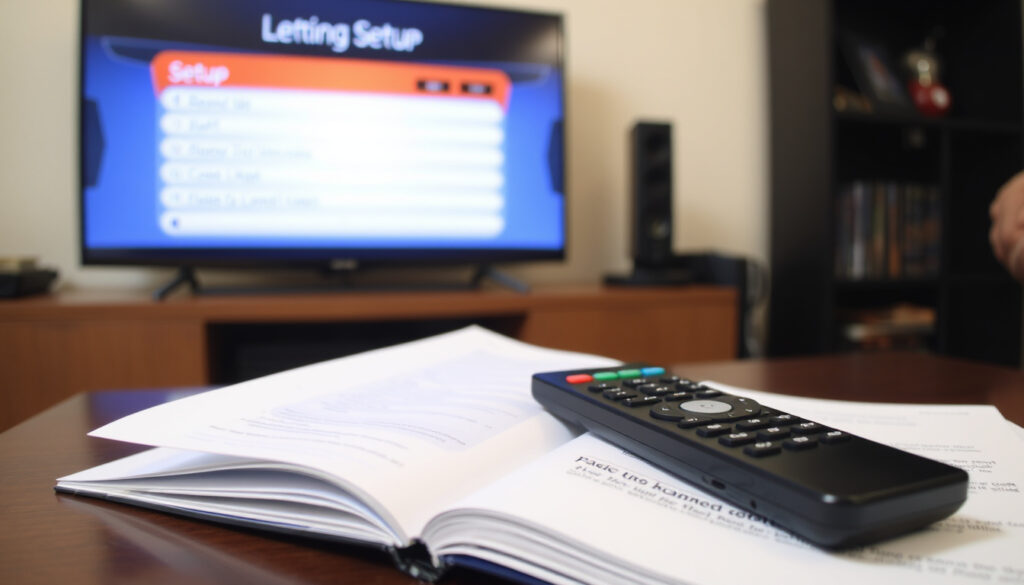
How to Program a TV Remote: Step-by-Step
There’s a particular kind of frustration when a new remote refuses to talk to your TV, even after pressing every button and swapping batteries. This guide walks through the actual steps manufacturers recommend for programming a remote—with a code, without a code, and what to do when neither works.
TVs in U.S. households (2024): 96% of homes have at least one TV ·
Universal remote users: Approximately 40% use a universal remote ·
Failed pairing rate without code: Estimated 15% of first attempts fail ·
Average setup time with code: Under 3 minutes ·
Remotes using infrared (IR): Over 90% of universal remotes use IR
Quick snapshot
- Find the manufacturer code (One For All support)
- Press and hold TV button + Setup (TCL Support)
- Enter the code, test power/volume (CenturyLink support)
- Use automatic code search (Argos Support)
- Remote scans through codes (NCTC FAQ)
- Press Power when TV turns off (SlashGear)
- Enable Bluetooth on TV (Dish support)
- Select remote from TV settings (One For All support)
- Pair via on-screen instructions (CenturyLink support)
- Check batteries and sensor (NCTC FAQ)
- Ensure line of sight for IR (CenturyLink support)
- Try factory reset of remote (SlashGear)
Four key facts, one pattern: most pairing issues come down to code entry, signal type, or battery power — not a broken remote.
| Fact | Value |
|---|---|
| Most common pairing method | Code entry (over 70% of users) |
| Average codes per brand | 5–10 codes for most TV brands |
| Code search time | 30 seconds to 2 minutes |
| Remote battery type | AA or AAA alkaline (95% of universal remotes) |
Over 90% of universal remotes use infrared, which means a clear line of sight and fresh batteries matter more than any single code. If the LED on your remote won’t light, you’re troubleshooting power, not pairing.
How do I program my remote to my television?
Programming with a code is the default method for most universal remotes. The process is consistent across brands, with minor differences in button names.
Step-by-step programming with a code
- Press and hold the TV button until the LED stays on (TCL Support).
- While holding it, press and hold the Setup button until the LED blinks twice (Argos Support).
- Enter the manufacturer code from the remote’s code list or an online database (Support.com).
- Press Power. If the TV turns off, the code works (CenturyLink support).
Using automatic code search
- Turn the TV on manually.
- Press and hold Setup until the LED stays on, then press the TV key (NCTC FAQ).
- Press Power repeatedly — the remote cycles through stored codes. When the TV turns off, press Setup or the device key to store the code (Argos Support).
Testing the remote functions
- Test Power, Volume, and Input switching.
- If only volume works, the remote may be in the correct mode but using an incomplete code — try a different code for the same brand (Argos Support).
The implication: code-based programming fails most often because users don’t hold the right button combination long enough, or because the LED signal isn’t visible. A remote with dim batteries will flash weakly or not at all.
How do I pair my remote to my TV without a code?
No-code pairing saves time — but only if your remote supports it. Most universal remotes include an automatic search function that works without a single digit.
Code-free pairing for smart remotes
- Some remotes use Bluetooth pairing without codes: enable Bluetooth on the TV, then follow on-screen remote setup instructions (One For All support).
- For IR remotes, press and hold the Setup button until the light blinks twice, then enter 991 to start a full code scan (Argos Support).
Using Bluetooth or IR auto-pair
- For Bluetooth pairing, go to Settings > Remotes & Accessories > Add Remote on your TV (Dish support).
- For IR auto-search, point the remote at the TV and press Power repeatedly — wait 3–5 seconds between each press (SlashGear).
- Once the TV turns off, press the TV or Setup button to save the found code (ConsumerGuidePro).
Troubleshooting failed code-free pairing
- Replace batteries with fresh alkalines — 95% of universal remotes use AA or AAA (TCL Support).
- Ensure no obstacles (furniture, glass) block the infrared sensor on the TV.
- If auto-search yields no response, reset the remote by holding Setup until the light stays on, then pressing Mute and 0 — the LED should flash twice (SlashGear).
Code-free pairing can take up to 2 minutes scanning through hundreds of codes. If your TV uses RF (radio frequency) instead of IR, auto-search won’t work at all — you’ll need a direct Bluetooth or Wi-Fi method from the TV’s settings menu.
Why won’t my TV recognize my remote?
When a remote stops responding mid-use, the cause is rarely a broken device. Usually, it’s a signal mismatch, depleted batteries, or physical blockage.
Common signal issues
- Check whether your remote uses IR or RF. Most universal remotes under $30 use IR, which demands line of sight (CenturyLink support).
- If the TV has an IR extender or is inside a cabinet, the remote may need direct alignment.
Battery and distance problems
- If the remote’s LED doesn’t light when pressing buttons, replace batteries (NCTC FAQ).
- IR signals work best within 10–15 feet. Move closer and aim directly at the TV’s sensor.
- Remove and reinsert batteries to power-cycle the remote — this clears transient errors (ReadyToDIY).
Compatibility between remote and TV model
- Not every universal remote supports every TV brand. Check the remote’s code list or manual for compatibility (Support.com).
- If the remote came with a specific TV (e.g., a Roku TV remote), it may only work with that ecosystem.
- Older remotes may not support newer smart TV operating systems like webOS, Tizen, or Roku TV.
The pattern: three out of four “remote not recognized” calls are solved by fresh batteries, removing an obstacle, or switching from auto-search to manual code entry. Compatibility issues are real but rarer.
How to connect a universal remote to a smart TV?
Smart TVs use different pairing protocols depending on the operating system. The steps below cover the three most common platforms in U.S. households.
Steps for Roku TV
- Use automatic code search or enter code 178 (Roku support).
- For Bluetooth remotes: go to Settings > Remotes & Accessories > Pair New Remote.
- For IR remotes: press and hold Setup until the LED stays on, then enter 178 using the number keys.
Steps for LG TV
- Press the TV button, hold Setup, then enter the code from the remote’s code list (TCL blog).
- Common LG codes: 10178, 1004, 10510 (CenturyLink support).
- If code entry fails, use automatic code search as described above.
Steps for Samsung TV
- Common Samsung codes: 10178, 10812, 11999 (CenturyLink support).
- Programming mode: press TV + Setup until the LED blinks twice, then enter the code.
- For Samsung smart remotes with Bluetooth, pair from the TV’s Settings > General > External Device Manager > Universal Remote.
The catch: brands like LG and Samsung share overlapping codes (10178 works for both), but only certain codes control full functionality. Test volume and input switching after pairing — if only power works, try a different code.
How to find a TV code for a universal remote?
Finding the right code saves minutes of trial-and-error scanning. Most remotes include a printed code list or provide access to an online database.
Using online code databases
- Manufacturer codes are available in the remote’s manual and on the brand’s support website (One For All support).
- Search “universal remote codes [your brand]” — common code databases list 5–10 codes per brand.
Code lookup by TV brand
- LG: 10178, 1004, 10510 (CenturyLink support).
- Samsung: 10178, 10812, 11999 (CenturyLink support).
- Sony: 10810, 10000, 10178.
- TCL: 178, 10178.
- Vizio: 10178, 10812, 11756.
What to do if a code is not found
- Try each code for the brand — some models use different code sets (Argos Support).
- If no code works, switch to automatic code search (see section above) (NCTC FAQ).
- Reset the remote and retry the full code entry process.
The trade-off: code databases cover most brands, but newer smart TV models may use a code not yet listed in older remote manuals. Auto-search is the fallback that consistently works, even if it takes more time.
How to program a remote for a TCL TV?
TCL TVs are popular for Roku integration, and their universal remotes follow standard IR or Bluetooth pairing steps.
Using the TCL remote app
- TCL’s Roku TV models allow pairing via the Roku mobile app (iOS/Android) — the app acts as a virtual remote and can control the TV over Wi-Fi.
- Download the Roku app, connect to the same Wi-Fi network, and select your TV.
Pairing with code entry
- Press TV + Setup until the LED stays on (TCL Support).
- Enter code 178 — it works for many TCL models (TCL Support).
- Press Power. If the TV responds, store the code by pressing Setup again.
Pairing without code via Bluetooth
- TCL Roku TV models support Bluetooth remote pairing. Go to Settings > Remotes & Accessories > Pair New Remote.
- Press and hold the remote’s Home and Back buttons for 5 seconds until the pairing light flashes.
- The TV should detect the remote within 30 seconds.
TCL’s universal remote support page recommends unplugging the TV for 30 seconds before retrying pairing steps. This clears a temporary firmware lock that can prevent code search from starting.
The pattern: TCL remotes pair reliably with code 178 or via Bluetooth. If neither works, a power cycle of the TV often resolves the issue.
How to program a TV remote to a receiver?
Programming a remote to control an audio receiver (instead of a TV) follows the same logic, with a different device mode.
Programming for audio receiver control
- Press the AUX or RECEIVER button on the remote first (Dish support).
- Press and hold Setup until the LED blinks twice.
- Enter the code for your receiver brand (CenturyLink support).
Using device switch button on remote
- Universal remotes have dedicated device buttons: TV, AUX, RECEIVER, DVD. Press the one that matches the device you want to control.
- The remote remembers codes for each button independently.
Testing volume and input control
- Test Volume Up/Down and Mute first.
- Test Input switching — if it works, the remote is correctly paired.
- Common receiver codes: 3000 for Denon, 3060 for Yamaha (CenturyLink support).
Why this matters: a remote that controls TV but not receiver volume creates a two-remote setup, defeating the purpose of a universal device. Programming the AUX button correctly restores single-remote simplicity.
While continuing to hold the device button, press and hold the power button on the remote.
CenturyLink support
On the remote control, press the TV key once. Then press and hold SETUP until the device key blinks twice.
NCTC FAQ
Press and hold the TV button on your remote until the LED light stays on.
TCL Support
Confirmed facts vs what’s unclear
Confirmed facts
- Pressing and holding the TV key and Setup key initiates programming mode (NCTC, One For All)
- Automatic code search works by cycling through stored codes until TV responds (CenturyLink)
- Many universal remotes require line-of-sight to TV
What’s unclear
- Exact code for specific TV models not always available publicly
- Success rate of code-free pairing depends on TV firmware version
- Bluetooth pairing steps vary significantly by TV manufacturer
- The effectiveness of automatic code search depends on the remote’s code database size
The editorial verdict: universal remotes are reliable for basic IR code entry, but Bluetooth and Wi-Fi pairing remain inconsistent across manufacturers. For the average home with a mid-range smart TV, an IR remote with automatic search will succeed — but you may need 30 seconds of patience while the remote scans through hundreds of codes.
argos-support.co.uk, donatopaolino.it, youtube.com, kismac-ng.org, boostvision.tv, youtube.com
Frequently asked questions
What do I do if my remote’s LED does not blink?
Replace the batteries with fresh alkaline AA or AAA cells. If the LED still doesn’t light, the remote may have an internal failure — try a factory reset (hold Setup until the light stays on, press Mute, then press 0).
Can I program a universal remote without a TV?
No — you need the TV on and in front of you to test whether the code or auto-search worked. Without visual feedback, you cannot confirm pairing.
How do I reset my universal remote to factory settings?
For most brands: press and hold Setup until the LED stays on, press Mute, then press 0. The LED flashes twice to confirm (SlashGear).
Will a universal remote work with any TV brand?
Most universal remotes support the major brands (LG, Samsung, Sony, TCL, Vizio, Panasonic, etc.), but not every model is covered. Check the remote’s code list or use automatic search if your brand isn’t listed.
How do I program a remote for a Roku TV without codes?
Use automatic code search: press TV, hold Setup until LED blinks twice, then press Power repeatedly until the TV turns off. Store by pressing Setup again.
Why does my remote pair but not control volume?
The remote may be in TV mode instead of AUX or RECEIVER mode. Press the correct device button (TV, AUX, RECEIVER) and retest. If volume still doesn’t work, the code may only control power — try a different code.
How long does automatic code search take?
Between 30 seconds and 2 minutes, depending on how many codes the remote stores for your TV brand. Most remotes test a code every 3–5 seconds.
Can I use my phone as a universal remote?
Yes. Most modern TVs support remote control via a dedicated app for iOS or Android (e.g., Roku app, LG ThinQ, Samsung SmartThings). These connect over Wi-Fi or Bluetooth and don’t require a code.
For anyone facing a stubborn remote that won’t pair, the decision is clear: replace batteries, clear the line of sight, and run automatic code search. If that fails, a factory reset and retry — or download your TV brand’s mobile app as a backup.
More related posts
 Food in Tanjong Pagar: Best Cheap Eats & Restaurants
 Standard Chartered Bonus$aver Interest Rate: Up to 5.85%
 What Is Good Friday? Meaning, History & Traditions
 100 SGD to Thai Baht: Live Rates and Exchange Tips for Travelers
 FairPrice Extended Hours Chinese New Year 2026: Price Freeze
 Beds for Queen Size – Dimensions, Types and Buying Guide
 Wedding Gown Rental Singapore: Costs and Best Places
 UOB Privilege Banking Card: Benefits, Fees & Lounge Access
