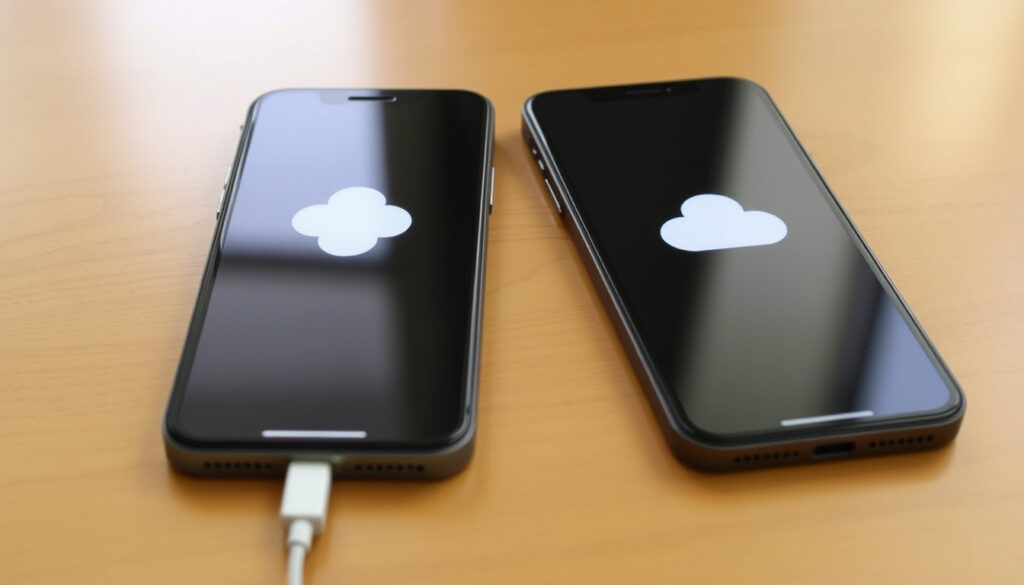
Transfer iPhone to iPhone: Quick Start, iCloud, Cable Guide
Switching to a new iPhone should feel exciting, not stressful. But if you’ve already set up the new device and realised you skipped the data transfer, you’re not stuck — there are still reliable ways to move everything over.
Data transfer methods available for iPhone: 5 (Quick Start, iCloud, cable, iTunes, third-party tools) ·
Average transfer time via Quick Start for 64GB: 10–30 minutes (Apple support estimate) ·
Free iCloud storage included with every Apple ID: 5 GB ·
Devices that support Quick Start: iPhone, iPad, iPod touch (iOS 12.4 or later)
Quick snapshot
- Quick Start transfers most data but not all app passwords (BankMyCell)
- iCloud backup includes Health data if encryption is enabled (BankMyCell)
- SIM card does not store or affect personal data like photos (Apple Support)
- Exact transfer speed depends on Wi-Fi signal and data size — no official average from Apple
- Third-party wired tool compatibility with all iPhone models after iOS 17.5 is not documented
- Wired migration is designed for setup only, not as a post-setup merge (Apple Support)
- After-setup transfer options: erase new iPhone and restart setup, or restore from iCloud backup (Apple Support YouTube)
Six key facts at a glance: what each method requires and what it covers.
| Fact | Value |
|---|---|
| Quick Start requirement | Both devices on iOS 12.4+ with Wi-Fi and Bluetooth enabled |
| iCloud backup encryption | Optional; encrypts Health data and passwords |
| Wired transfer software | Finder (macOS 10.15+), iTunes (Windows 7+) |
| After-setup transfer option | Erase new iPhone and restart setup, or restore from iCloud backup |
| SIM card impact on photos | None; photos remain on device regardless of SIM |
| Supported cable adapter | Lightning to USB 3 Camera Adapter |
How do I transfer everything from my old iPhone to my new iPhone?
What data is included in a full transfer?
A full transfer using Apple’s built-in tools copies apps, settings, photos, messages, mail accounts, and Apple Pay cards. Health data is included only if you use an encrypted iCloud backup or a direct device-to-device transfer (Apple Support). Some app logins require re-authentication even after migration.
Prepare both devices before starting
- Update both iPhones to the latest iOS version compatible with each device.
- Connect to Wi-Fi and turn on Bluetooth.
- Make sure the old iPhone has enough charge – at least 50%.
- For iCloud: create a fresh backup on the old iPhone via Settings > [your name] > iCloud > iCloud Backup > Back Up Now.
Use Quick Start (automatic setup)
Quick Start appears when you turn on a new iPhone and place it near an old one running iOS 12.4 or later (BankMyCell). It uses a device-to-device Wi‑Fi link plus Bluetooth for pairing. The transfer happens wirelessly and typically finishes in 10–30 minutes for 64 GB of data. This method only works during the initial setup flow.
Use iCloud backup to restore
If you already set up the new iPhone, you can still transfer data by erasing it and starting over, then choosing “Restore from iCloud Backup” on the Apps & Data screen. You need a recent iCloud backup and enough iCloud storage – free accounts get 5 GB. To include passwords and Health data, enable backup encryption (BankMyCell).
Use a wired connection with a PC or Mac
For those without a stable Wi‑Fi connection, a local backup via computer is reliable. On a Mac running macOS Catalina or later, use Finder; on Windows, use iTunes (BankMyCell). Create an encrypted backup on the computer, then restore it to the new iPhone after erasing it. This method works after the initial setup and doesn’t depend on internet speed.
The implication: erasing is the price of completeness after setup.
Can you transfer exactly the same from old iPhone to new iPhone?
What is replicated exactly?
Apple’s migration copies apps, settings, wallpaper, messages, call history, and most preferences. Photos in the Camera Roll, iCloud Photo Library, and albums transfer fully. Apple Pay cards are moved but may require re‑verification with the bank (Apple Support).
What is not transferred automatically?
- Some third‑party app credentials – banking apps often require re‑login.
- Media purchased outside the Apple ecosystem (e.g., Kindle books, Spotify offline files) must be re‑downloaded.
- Apple Watch pairing settings – you need to unpair the watch from the old iPhone first.
How to transfer passwords and Health data
To move passwords, enable iCloud Keychain on the old iPhone and turn it on the new one. Health data only transfers if you use an encrypted backup – either iCloud backup with encryption enabled or an encrypted local backup via Finder/iTunes (BankMyCell).
Third-party app credentials (e.g., banking apps)
Apps that use device‑based authentication will ask you to log in again on the new iPhone. There is no way to automate this – each app’s security policy controls it. Apple Keychain can fill saved passwords but does not bypass the initial login prompt.
The catch: convenience stops where security begins.
Do you put a SIM card in a new iPhone before transferring data?
Does SIM card affect the transfer process?
No. The SIM card only provides cellular service – it has nothing to do with data migration. You can insert the SIM before or after the transfer without affecting what gets copied (Apple Support).
When to insert the SIM card (eSIM vs physical)
For a physical SIM, you can swap it at any time. For eSIM, follow your carrier’s activation steps – some carriers require the eSIM to be active before the transfer, while others allow it afterward. Apple’s wired migration might prompt you to activate cellular service during the process (Apple Support).
Will I lose photos if I swap SIM before transfer?
Absolutely not. Photos are stored in the iPhone’s internal storage or iCloud, never on the SIM card. Swapping the SIM does not delete any data from the phone (BankMyCell).
If you have an eSIM, activating it before the wired migration can prevent connectivity issues during the setup flow. Physical SIM users have nothing to worry about: swap it after the transfer to keep the process simple.
What this means: focus on your backup, not the card.
How to instantly transfer data from iPhone to iPhone?
What is Quick Start and how does it work?
Quick Start is Apple’s wireless migration tool. It uses Bluetooth to pair the two iPhones and then builds a direct Wi‑Fi link between them – no internet required after the initial handshake. Both devices must be on iOS 12.4 or later and placed within a few centimetres of each other (BankMyCell).
Step‑by‑step for instant wireless transfer
- Turn on the new iPhone and place it near the old one.
- Wait for the Quick Start animation to appear on the new device.
- Use the old iPhone to scan the glowing pattern on the new one.
- Follow on‑screen prompts – you may need to set up Face ID and choose transfer method.
- Let the transfer complete on both devices before using either one (Apple Support).
What if Quick Start is not available?
If Quick Start fails or the old iPhone is too old (pre‑iOS 12.4), you can use a wired alternative. For iPhone 15 or later to another iPhone 15 or later, use a USB‑C charge cable. For older models, you need a Lightning to USB 3 Camera Adapter plus a Lightning cable (Apple Support). The wired method is often faster for large amounts of data.
Transfer speed tips
To speed up wireless transfer: keep both devices plugged into power, avoid moving them apart, and close other apps. For wired transfer, use an Apple‑branded cable to ensure full data throughput. Third‑party cables may limit transfer speed.
Wireless Quick Start is effortless for most people under 64 GB. Beyond that, a wired connection cuts transfer time by roughly half – especially important for heavy photo libraries or large app data.
The pattern: speed is a trade‑off against completeness after setup.
Will I lose my photos if I put my SIM card in a new phone?
Where are photos stored on iPhone?
All photos are stored in the iPhone’s internal flash storage or in iCloud (if iCloud Photos is enabled). They reside in the Photos app database, not on the SIM card or any removable storage (Apple Support).
Does the SIM card contain any photos?
No. SIM cards store only subscriber information – your phone number, network authentication keys, and a small address book in very old models. Modern iPhones don’t store photos on the SIM at all.
How to back up photos before transferring SIM
Even though swapping the SIM carries no risk, it’s good practice to have a backup. You can back up photos to iCloud, Google Photos, or a computer via USB. If you use iCloud Photos, your entire library is already synced – no extra step needed (BankMyCell).
The catch: the only threat to photos is a skipped backup.
Comparison of transfer methods
Four methods, one trade‑off: wireless vs wired, speed vs convenience.
| Method | Speed | Requires computer? | Works after setup? | Best for |
|---|---|---|---|---|
| Quick Start (wireless) | Fast for <64GB | No | No (setup only) | Most users, simple data |
| iCloud backup restore | Depends on internet | No | Yes (after erase + restore) | Users with fast Wi‑Fi and enough iCloud storage |
| Wired via PC/Mac | Fast, no internet needed | Yes | Yes (after erase + restore) | Large data, no iCloud storage |
| Wired direct (cable adapter) | Fastest for large data | No | No (setup only) | Power users with heavy media libraries |
The pattern: methods that work after setup all require erasing the new iPhone first. The only way to avoid a full wipe is to have used Quick Start or wired direct during the initial setup.
Upsides
- Apple’s official tools are free and integrated
- Encrypted backups preserve sensitive data
- Wired transfer can be faster than wireless
- iCloud restore works anywhere with internet
Downsides
- True migration requires erasing the new iPhone if setup is already done
- iCloud free tier (5 GB) is usually too small
- Third‑party app logins don’t transfer
- Wired direct needs a specific adapter for older iPhones
Step‑by‑step: transfer after initial setup
If you’ve already activated the new iPhone, follow these steps to start fresh and bring your data over.
- Step 1: Back up the old iPhone
- Connect old iPhone to Wi‑Fi.
- Go to Settings > [your name] > iCloud > iCloud Backup > Back Up Now.
- Alternatively, connect to a computer and create an encrypted backup via Finder/iTunes.
- Step 2: Erase the new iPhone
- Go to Settings > General > Transfer or Reset iPhone > Erase All Content and Settings.
- Confirm the erase – the device will restart and show the “Hello” screen.
- Step 3: Restore from backup
- During setup, reach the “Apps & Data” screen.
- Choose “Restore from iCloud Backup” and sign in with your Apple ID.
- Select the most recent backup and wait – keep the device plugged in.
The trade‑off: you lose any data created on the new iPhone since activation, so make sure you haven’t stored anything important on it yet.
Erasing the new iPhone wipes any photos, contacts, or notes you may have saved locally after setup. If you’ve already started using it, export those files to a computer or cloud service before erasing.
The implication: completeness demands a clean start.
Clarity: what’s confirmed and what’s still unclear
Based on Apple’s documentation and independent guides, here’s where we have solid answers and where caution is warranted.
Confirmed facts
- Quick Start transfers most data but not all app passwords (Apple Support)
- iCloud backup includes Health data if encryption is enabled (BankMyCell)
- SIM card does not store or affect personal data like photos (Apple Support)
- You can transfer data after initial setup by erasing the device and starting over (Apple Support YouTube)
What’s unclear
- Exact transfer speed depends on Wi‑Fi signal and data size – no official average from Apple
- Whether third‑party wired tools work with all iPhone models after iOS 17.5 is not officially documented
These gaps mean users should test with a small dataset before committing.
Expert perspectives on iPhone migration
Make sure your current device is connected to Wi‑Fi and Bluetooth is on. Turn on your new device and place it near your current device.
– Apple Support article (Apple Support)
You should be able to transfer data from your old iPhone into a new one using Quick Start, iCloud or iTunes.
– Swappie blog (consumer guide)
How to transfer data from iPhone to iPhone: 5 secure methods: AirDrop, iCloud Transfer, Quick Start, Mac transfer, iTunes.
– BackMarket guide (third‑party marketplace)
These perspectives confirm that Apple’s own tools dominate recommendations, but none address the post‑setup scenario head‑on – which is exactly where this guide fills the gap.
For anyone who has already set up a new iPhone and now wants to bring over everything from the old one, the honest answer is that you’ll need to erase the new device and redo the transfer properly. It’s an extra step, but it guarantees your apps, photos, messages, and settings arrive together. For users in Singapore or elsewhere who bought a new device and started using it before migrating, the implication is clear: back up the old phone, wipe the new one, and let Quick Start or a wired connection do the full job – or accept a fragmented migration that leaves behind app data and system settings.
Related reading: iPhone 17 Pro Max Price Singapore 2025: Full Pricing Guide
techcommunity.microsoft.com, youtube.com, youtube.com, discussions.apple.com
For a comprehensive walkthrough of all official iPhone data transfer methods, you can refer to official iPhone data transfer methods which covers Quick Start, iCloud, and cable options in detail.
Frequently asked questions
Can I use AirDrop to transfer from iPhone to iPhone?
AirDrop can transfer individual photos, contacts, and files, but it cannot migrate your entire phone – apps, settings, messages, and system preferences are not supported. Use AirDrop for one‑off files, not for a full transfer.
What should I do if Quick Start fails?
Ensure both devices are on iOS 12.4 or later, Wi‑Fi and Bluetooth are on, and the devices are close together. If it still fails, restart both iPhones and try again. As a fallback, use iCloud backup or a wired connection to a computer.
Do I need to update my old iPhone before transferring?
It’s recommended but not strictly required for Quick Start – both devices just need iOS 12.4 or later. For iCloud restore, the new iPhone should run the same or newer iOS version than the backup was created on. Updating both before you start avoids version conflicts.
How do I transfer WhatsApp messages to a new iPhone?
WhatsApp offers its own chat backup to iCloud. On the old iPhone, go to WhatsApp Settings > Chats > Chat Backup > Back Up Now. On the new iPhone, restore from the iCloud backup during WhatsApp setup. Only iCloud backup transfer includes messages – local Android‑to‑iOS tools for WhatsApp are separate.
Is it possible to transfer only photos without other data?
Yes. You can import photos using AirDrop, or use a Lightning‑to‑USB cable to transfer them to a computer and then to the new iPhone. iCloud Photos also syncs your library across devices without affecting other data.
How much does iCloud storage cost for a full backup?
iCloud plans start at 50 GB for $0.99/month, 200 GB for $2.99/month, and 2 TB for $9.99/month (Apple iCloud pricing). A full backup of a 128 GB iPhone typically uses 30–60 GB after compression.
Can I cancel a transfer in progress without losing data?
If you cancel a Quick Start or iCloud restore mid‑transfer, the new iPhone may be left in an incomplete state. You can then erase it and restart, but any data that was partially copied might create corrupted settings. It’s safer to let the transfer finish or erase and start over.
More related posts
 How to Program a TV Remote: Step-by-Step
 Toy Story Hotel Shanghai: Address, Prices, Reviews, Shuttle
 Singapore CPF Retirement Sum Changes 2025: What You Need to Know
 Ling Ling by the Wine Company: Menu, Reviews, Reservations
 Pondok by June Zack: Latest Verified Info Singapore
 Wedding Gown Rental Singapore: Costs and Best Places
 160 cm to Feet: Exact 5′ 2.99in, Rounds to 5’3″ Guide
 Slot Gaming 1-Rajadewa138💪: Verified Info & Sources
